

Quick Answer
Manage an online store through WhatsApp means handling day-to-day store tasks, adding products, changing prices, updating descriptions, checking orders, by sending a message instead of logging into a dashboard. A business connects its WhatsApp number to its store’s backend, and plain-language instructions sent through chat are read and applied directly to the store. For some platforms, this goes further than small edits: a store can be built, stocked, and make its first sale entirely through WhatsApp, with no dashboard visit required at all.
Key Takeaways
- India has over 500 million WhatsApp users, the largest single market in the world for the app. (Source: Statista, via WhatsApp Statistics 2026)
- More than 15 million Indian businesses already use WhatsApp Business, more than any other country. (Source: Meta India Business Summit / Statista, 2026)
- 80% of small business owners in India and Brazil use WhatsApp to run and grow their business, not only to talk with customers. (Source: Meta Business Messaging Research)
- 73% of consumers say they prefer messaging a business over calling or emailing. (Source: Kantar / Meta, State of Business Messaging 2025)
Why This Matters: The Problem With How Most Store Management Works
Running an online store generates a steady stream of small, low-complexity tasks. A price needs to change because of a seasonal sale. A new product arrives and needs to be listed. A customer asks whether an order has shipped. A product description has a typo that’s been bothering you for a week.
None of these tasks are individually difficult. The friction isn’t the task itself, it’s the process around it:
- Opening a laptop or logging into a dashboard app
- Navigating to the correct section (Products, Orders, Settings, and so on)
- Finding the specific item among potentially hundreds of others
- Making the edit
- Saving, and sometimes confirming the save went through
This is the specific problem that WhatsApp-based store management addresses. It doesn’t try to replace the dashboard as a tool for complex work like theme design or detailed analytics. It targets the high-frequency, low-complexity tasks that make up most of a store owner’s daily admin load.
What “Managing a Store Through WhatsApp” Actually Means

Managing a store through WhatsApp means using WhatsApp as a control interface for your store’s backend. You send an instruction; the system interprets it and makes the corresponding change to your store’s data, products, prices, inventory status, order information.
This is distinct from a “WhatsApp Store,” where the product catalog and purchasing flow exist primarily inside WhatsApp itself, using WhatsApp’s native Catalog and Cart features. In that model, WhatsApp is the storefront.
Put simply:
- WhatsApp Store = customers browse and buy inside WhatsApp
- WhatsApp store management = the business owner operates their website’s backend from WhatsApp – (Wcart)
Both are valid uses of WhatsApp in ecommerce, but they solve different problems, and conflating them leads to confusion about what a given tool or feature actually does.
How WhatsApp-Based Store Management Works, Technically
At a conceptual level, the process involves three layers working together.
1. A Verified Connection Between WhatsApp and the Store
- Before any instruction can be processed, the business’s WhatsApp number has to be linked to their store’s backend system.
- This is typically a one-time setup step involving verification, so that the system can confirm messages are coming from an authorized store owner or staff member, not an arbitrary sender.
2. Natural-Language Interpretation
- The core technical capability is interpreting a plainly written instruction, something like “change the price of the blue cotton kurta to 1,299”, and extracting the structured information needed to act on it: which product, which field, and what the new value should be.
3. Applying the Change to the Store’s Backend
- Once the instruction is interpreted, the system writes the change directly to the store’s database, the same database the website’s dashboard reads from and writes to.
- This is what makes it a genuine management interface rather than a cosmetic chat layer: the change is immediate and reflected on the live storefront.
The general flow looks like this:
Message sent → Instruction interpreted → Backend updated → Storefront reflects the change
The Tasks This Approach Typically Simplifies

Here’s a detailed look at the categories that typically apply.
1. Adding New Products
- Traditionally, adding a product means filling out a form with multiple fields: name, description, price, category, images, stock quantity, and sometimes variant options like size or color.
- Through WhatsApp, this can be compressed into a single message describing the product, with the system extracting the relevant fields.
- For example, a message like “Add a new product: handwoven cotton saree, price 2,499, available in red and blue” can be parsed into a structured product entry with name, price, and variant information.
What this simplifies:
- Reduces a multi-field form into a single descriptive message
- Removes the need to navigate to a specific “Add Product” screen
- Makes it realistic to add products the moment new stock arrives, rather than batching the task for later
2. Updating Prices
- Price changes are frequent for seasonal sales, cost fluctuations, or competitive repricing. A dashboard-based price update requires locating the specific product (which can be slow in a catalog with hundreds of SKUs) before editing the field.
- A message like “Change the price of the leather wallet to 899” skips the search step entirely, assuming the system can correctly identify which product is being referenced, usually by name or a previously used identifier.
What this simplifies:
- Removes manual product search in large catalogs
- Makes same-day or same-hour price changes practical during flash sales
- Reduces the chance of editing the wrong product, since the instruction names the product explicitly
3. Editing Product Descriptions and Details
- Typos, outdated information, and incomplete descriptions are common in growing catalogs, especially ones populated quickly during initial setup. Correcting these through a dashboard means locating the product, opening the edit view, and revising text in a form field.
- Through chat, an instruction like “Update the description for the ceramic mug to mention it’s dishwasher safe” can trigger a targeted edit to that specific field.
What this simplifies:
- Lowers the effort threshold for making small text corrections, so they’re more likely to actually get made
- Avoids opening a full product-edit screen for a one-line change
4. Checking Orders and Store Activity
- Not every WhatsApp-based management task is a write operation, some are read operations: pulling information rather than changing it.
- A message like “Show me today’s orders” or “How many orders came in this week?” retrieves and summarizes order data without the owner needing to open an analytics dashboard.
What this simplifies:
- Gives a quick operational snapshot without a dashboard login
- Useful for spot-checking store performance from a phone, between other tasks
5. Managing Stock and Availability Status
- For stores where inventory changes frequently, whether due to limited-run products, handmade goods, or fast-moving stock, marking an item as out of stock or updating a quantity count is a common task.
- An instruction like “Mark the red saree as out of stock” or “Update stock for the blue kurta to 12 units” applies directly to inventory data.
What this simplifies:
- Keeps stock status current in near real time, which reduces the risk of overselling
- Removes a step that’s otherwise easy to deprioritize during a busy day
6. General Store Information Updates
- Some tasks fall outside product-level data entirely, things like updating a store’s announcement banner, changing holiday shipping notices, or adjusting a contact detail.
- Depending on the sophistication of the system, these broader store-settings changes can sometimes also be handled conversationally, though this category tends to have more variation in what’s actually supported from one implementation to another.
Questions Worth Asking Before Adopting This Approach
If you’re evaluating a platform that offers this kind of feature, a few questions help clarify what you’re actually getting:
- How far does the feature actually go? Some platforms only support editing existing products; others support full store setup and a first sale. Get the specific scope, don’t assume.
- Is there a review step before changes go live, or are changes applied immediately? Both approaches are valid, but they carry different risk profiles, especially for pricing changes and initial store setup.
- How does the system handle ambiguous instructions? For example, if two products have similar names, what happens? Understanding the failure mode matters as much as understanding the success case.
- Is the connection between WhatsApp and the store verified and secured, so that only authorized numbers can make changes?
- Does this work alongside the existing dashboard, or does it require choosing one or the other? The strongest implementations treat WhatsApp and the dashboard as two interfaces to the same store, not a forced either-or choice.
Who Benefits Most From This Model
Based on the nature of the tasks involved, a few types of sellers see the most practical benefit:
- Solo or small-team store owners, who are handling store admin alongside sourcing, fulfillment, and customer service, and have limited dedicated “admin time” in a day.
- Sellers who already run customer communication through WhatsApp, since this model simply extends a tool they’re already using constantly rather than introducing a new one.
- Catalogs with frequent small changes, such as fashion, handmade goods, or any business with seasonal or fast-turnover inventory.
- Mobile-first sellers, who may not regularly use a laptop and primarily operate their business from a phone.
- Businesses transitioning from informal selling (social media, word of mouth) to a structured online store, who are used to conversational workflows and may find a chat-based admin interface more intuitive than a traditional dashboard.
Two Ways to Build a Store: WhatsApp-First or Dashboard-First
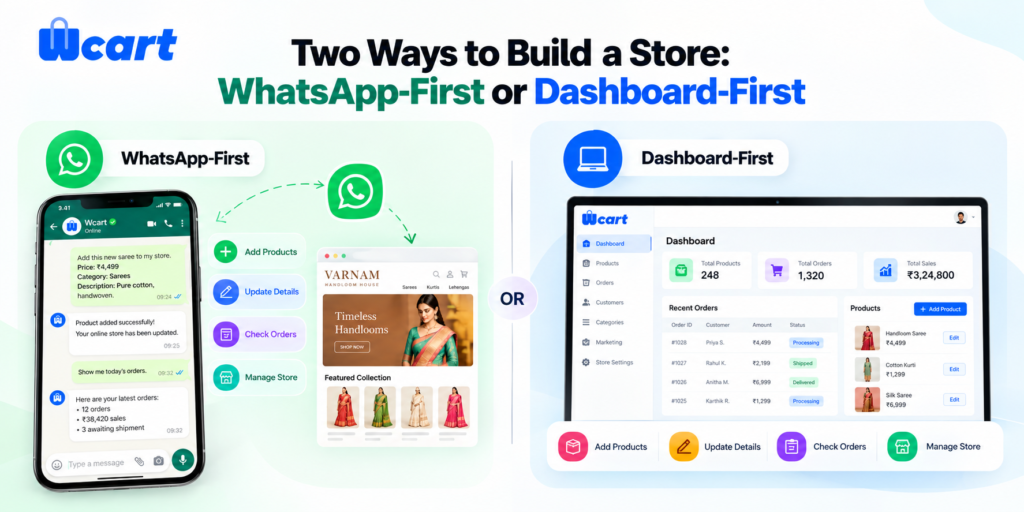
Given how far this capability extends, it’s worth framing the choice clearly rather than treating WhatsApp as a minor add-on to a dashboard-centric process.
Building through WhatsApp means:
- Setting up the store, adding the catalog, and processing the first sale entirely through chat
- No dashboard visit required at any point, if the owner chooses not to
- A conversational, linear experience: describe what you want, confirm it, move to the next thing
Building through the dashboard means:
- Using the traditional visual interface: forms, screens, drag-and-drop layout tools
- Better suited to visual decisions, like arranging a homepage or picking a theme
- More familiar to users who are used to standard web-based admin panels
Step-by-Step: Setting This Up on Wcart
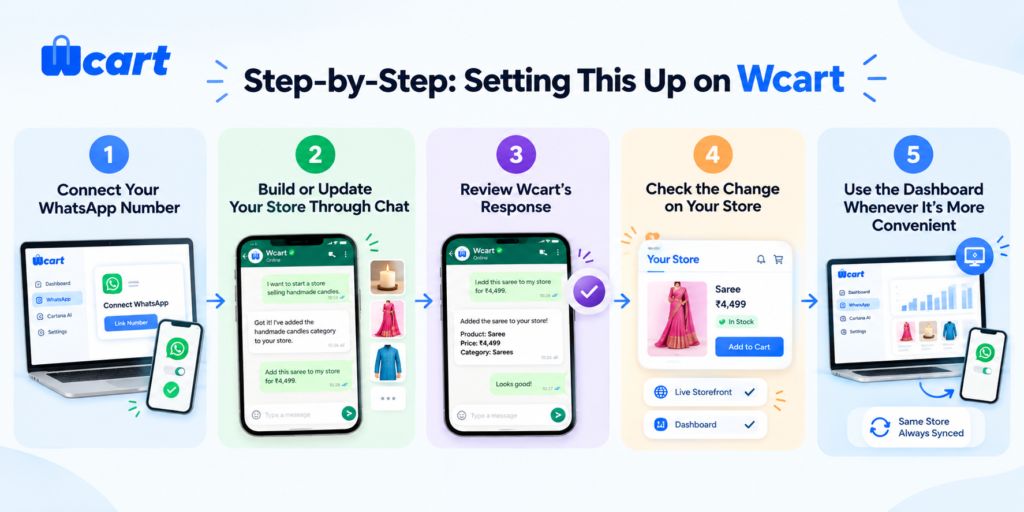
Wcart includes this kind of WhatsApp-based store management as a built-in feature, and it covers the full range described above: setup, catalog, pricing, stock, orders, and the first sale.
Step 1: Connect Your WhatsApp Number
- From your Wcart dashboard, go to the WhatsApp or Cartana AI section and link the WhatsApp number you want to use for store management.
- This is a one-time verification step. If you’re starting from scratch, this is also where you’d begin if you prefer to set up the store itself through chat instead.
Step 2: Build or Update Your Store Through Chat
- Message the connected WhatsApp number directly, phrased however feels natural. This works the same way whether you’re setting up for the first time or making a routine update later:
- “I want to start a store selling handmade candles.”
- “Add this saree to my store for ₹4,499.”
- “Change the price of the blue kurta to ₹1,299.”
- “Mark the red dress as out of stock.”
- “Show me today’s orders.”
Step 3: Review Wcart’s Response
- Wcart replies in the same chat confirming what it understood from your message, for example, confirming the product name, field, and new value before (or immediately after) applying the change.
- This confirmation step is your chance to catch a misread instruction before it affects your live store.
Step 4: Check the Change on Your Store
- The update applies directly to your Wcart store’s backend, the same data your storefront and dashboard both read from.
- You can verify the change either by checking the live storefront or by opening the relevant section of your dashboard, if you choose to open it at all.
Step 5: Use the Dashboard Whenever It’s More Convenient
- Nothing about using WhatsApp locks you out of the dashboard. For visual tasks like theme changes, or any time it’s simply easier to see everything on a screen, the Wcart dashboard remains available.
- WhatsApp and the dashboard both operate on the same store, so you can move between them freely.
Final Words:
WhatsApp is changing how stores get managed. You don’t need a dashboard for everything anymore, you can set up a store, add products, and get your first sale, all through chat. The dashboard still helps for visual work like themes. Together, they make running a store simpler, especially if you’re just starting out.
What makes this worth paying attention to is how far it goes. It’s not just quick edits. You can set up your store, build your catalog, and get your first sale, all through chat, no dashboard needed. The dashboard still matters for visual work like themes. But for daily tasks, WhatsApp just makes running your store simpler.

























Leave a Reply