
Ecommerce shipping is the process of calculating shipping costs, selecting delivery methods, fulfilling customer orders, and delivering products efficiently. A well prepared shipping strategy includes shipping zones, accurate shipping rates, trusted carrier integrations, free shipping options, local pickup, and order tracking to improve the customer experience and reduce cart abandonment.
While Wcart’s shipping engine lets you set rates by zone, weight or order value, pull live carrier rates (USPS, UPS, FedEx, DHL and regional couriers), offer free shipping with rules, run local pickup and delivery, ship from multiple warehouses, and split a single order across vendors.
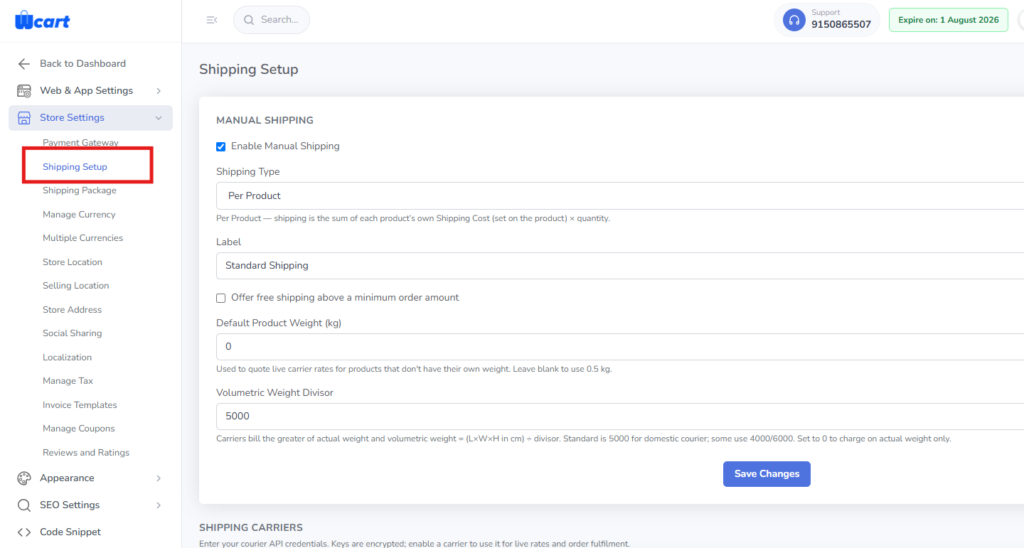
You configure all of it under Settings → Shipping. Get this part right and shipping turns into a conversion lever instead of a checkout killer. Surprise delivery costs are the single biggest reason carts get abandoned, so the goal is simple: accurate, transparent rates shown as early as you can show them.
Why shipping decides conversion, not just logistics
Shipping is where a lot of almost-sales quietly die. A buyer adds to cart, gets to checkout, sees a delivery charge they didn’t expect, and walks. Unexpected extra costs like shipping are consistently cited as a leading cause of cart abandonment. The fix usually isn’t cheaper shipping. It’s predictable, transparent shipping: show the cost early, give people a free-shipping path, and make the rate line up with what fulfilment actually costs you. Wcart hands you the levers for all three.
The shipping methods Wcart supports
1. Zone-based shipping
Group the places you ship into zones (domestic, neighbouring countries, rest of world) and set rules per zone. This is the foundation. Almost every other rate type sits on top of zones.
2. Weight- and price-based rates
Charge by parcel weight, which works best when your products vary a lot in size, or by cart value, which is simpler and more predictable for buyers. You can tier either one. For example, free over a threshold and a flat rate below it.
3. Live carrier rates
Connect USPS, UPS, FedEx, DHL or a regional courier and Wcart pulls real-time rates at checkout, so the customer pays what shipping actually costs and you don’t eat the difference. This is the right call for stores with a wide spread of weights and dimensions. One thing to watch: live rates depend on the carrier API being up, so keep a flat fallback rate set per zone in case a lookup times out at checkout. See our USPS & UPS shipping guide for the small-business setup.
4. Free shipping (with rules)
“Free shipping over ₹X / $X” is one of the most reliable average-order-value boosters there is. It nudges buyers to add one more item just to clear the threshold. Set it per zone so you’re not quietly subsidising your most expensive lanes.
5. Local pickup & local delivery
For stores with a physical presence, let nearby customers pick up in-store (zero shipping cost, faster) or offer local same-day delivery within set postcodes. Both options improve margin and experience for local buyers.
6. Multi-warehouse routing
If you stock in more than one location, Wcart can route each order to the nearest warehouse that has it in stock, which cuts both delivery time and cost. This becomes essential once you scale fulfilment.
7. Split shipping for marketplaces
Running a multi-vendor marketplace? A single customer order containing items from three vendors splits into three shipments, each handled and tracked by its vendor. Wcart manages the split, so the buyer sees one order while each vendor fulfils their part.
How to set up shipping in Wcart
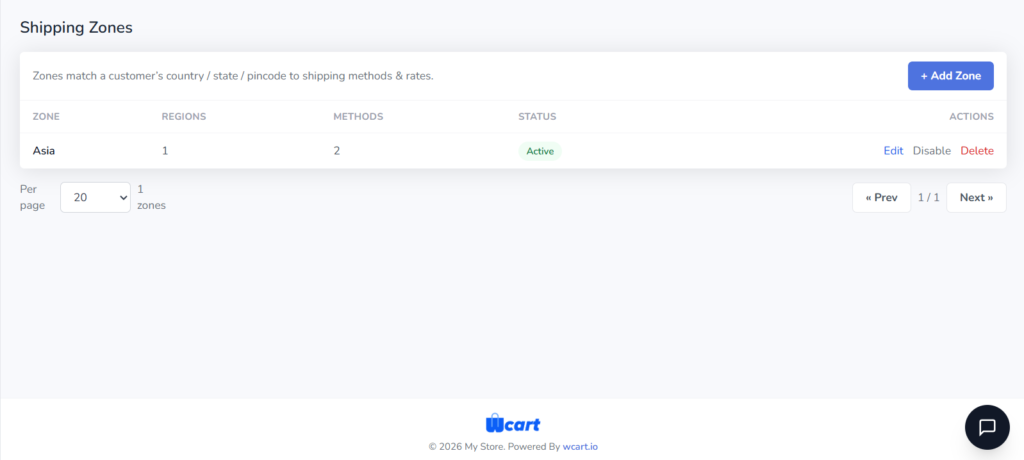
- Open Settings → Shipping and create your zones first.
- Add a rate method to each zone: flat, weight/price-based, live carrier, or a free-shipping rule.
- Connect carrier accounts if you want live rates (API keys from USPS/UPS/FedEx/DHL).
- Set a free-shipping threshold where it makes margin sense.
- Enable local pickup/delivery if relevant, with your serviceable postcodes.
- Place a test order to each zone and confirm the rate shown matches what you expect.
Show shipping cost early, the conversion fix
The biggest win here isn’t a setting. It’s a sequence. Surface the shipping cost (or “free over X”) before the final checkout step, either on the cart page or through a shipping estimator. Google’s own product structured-data guidance even lets you expose shipping details in search results, reinforcing that transparency pays off. Buyers who see the number early and accept it tend to convert. Buyers ambushed by it at the last step bounce. Pair this with abandoned-cart recovery to win back the ones who still hesitate.
Tracking & post-purchase
Once an order ships, send the tracking number automatically so customers can follow it. That one email cuts “where is my order?” support tickets dramatically and builds the trust that earns you the repeat purchase. Wcart attaches tracking to the order and notifies the buyer.
Common shipping mistakes to avoid
- Hiding cost until the last step. The number-one abandonment trigger. Show it early.
- One flat rate worldwide. You lose money on far lanes and overcharge on near ones.
- Free shipping with no threshold. Protect margin with an order-value floor.
- No tracking emails. Drives up support load and erodes trust.
- Ignoring dimensional weight. Light-but-bulky items cost more than flat weight rates assume. A pillow ships cheap on the scale and expensive on the truck, and the carrier bills you for the box, not the gram.


























Leave a Reply