
In Wcart you control delivery charges by creating shipping zones (groups of countries or regions) and attaching rate methods to each: flat rate, weight-based, price-based, live carrier rates, or free-shipping rules. Set them up under Settings → Shipping. Create zones first, add the right rate type per zone, then test an order to each one. Get this right and every customer sees an accurate, predictable delivery cost, which is the single biggest factor in whether they finish checkout.
Start with zones, always
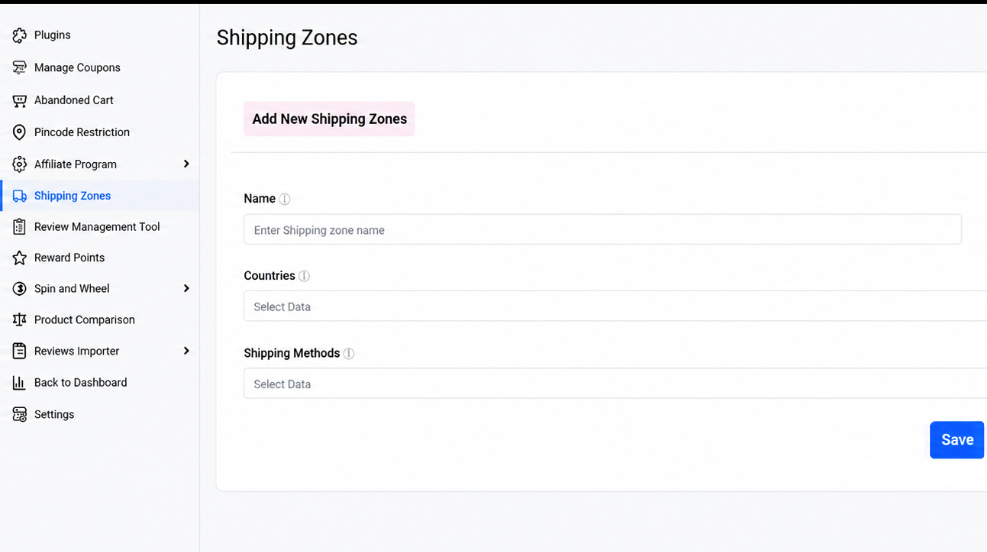
A shipping zone is a bucket of places you treat the same way for delivery. Most stores need three to five: domestic, neighbouring countries, and rest of world. Sometimes you’ll split further (metro vs remote, or by state). Zones come first because every rate you set hangs off one. Trying to price shipping without zones is how you end up overcharging local buyers and bleeding money on the far-flung ones.
- Open Settings → Shipping and click Add zone.
- Name it and assign the countries or regions it covers.
- Repeat until every place you ship to belongs to exactly one zone.
- Leave a “rest of world” catch-all so no order falls through with no rate.
Choose the right rate method per zone
| Rate method | Best when |
|---|---|
| Flat rate | Products are similar in size/weight; you want dead-simple, predictable pricing. |
| Weight-based | Products vary a lot in weight; you want the charge to track real cost. |
| Price-based | You prefer thresholds buyers understand (“free over X, flat below”). |
| Live carrier rates | Wide weight/dimension range; you want the exact dimensional-weight-accurate USPS/UPS/FedEx/DHL price. |
| Free shipping | You want to lift average order value with a spend threshold. |
You can mix methods across zones: flat domestic, live carrier international, free shipping over a threshold everywhere. One thing worth knowing before you reach for live carrier rates everywhere.

They add a real-time API call at checkout, so if the carrier is slow or times out, the buyer can stare at a spinner at the worst possible moment. Plenty of stores keep a flat-rate fallback on the same zone for exactly that reason.
Shipping Rate Method Comparison
| Shipping Method | Best For | Cost Accuracy | Customer Experience | Setup Difficulty |
|---|---|---|---|---|
| Flat Rate | Similar-sized products | Medium | Excellent | Easy |
| Weight-Based | Heavy or varied products | High | Good | Medium |
| Price-Based | Free shipping campaigns and AOV growth | Medium | Excellent | Easy |
| Live Carrier Rates | International and large catalogs | Very High | Good | Advanced |
| Free Shipping | Conversion and basket-size growth | Low | Excellent | Easy |
Set a free-shipping threshold that protects margin
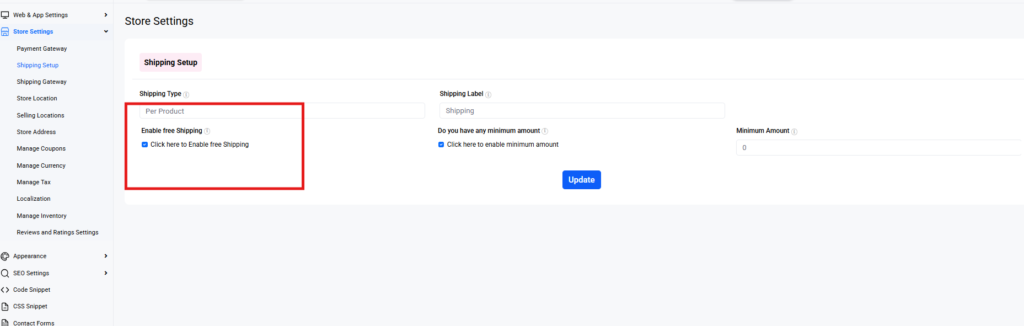
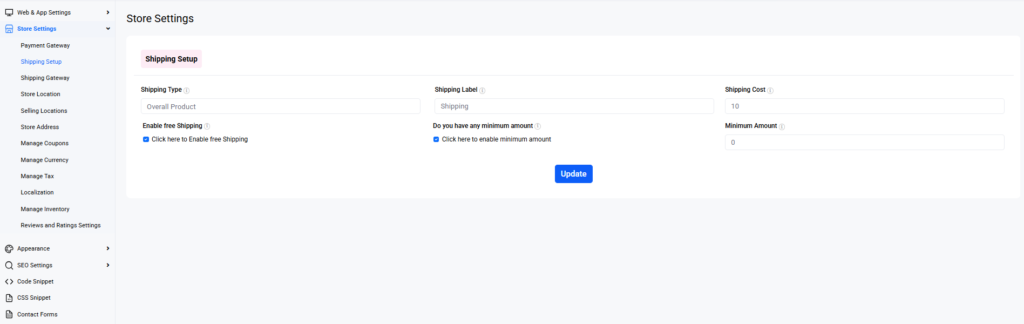
“Free shipping over ₹X / $X” is one of the most reliable basket-size boosters there is, because buyers add an item to cross the line. The trick is setting the threshold above your average order value (so it actually nudges spend) and applying it per zone, so you’re not quietly subsidising expensive international lanes. Don’t offer blanket free shipping with no floor unless your margins genuinely absorb it.
Weight vs price: which to pick
If a feather and a dumbbell ship for the same flat fee, you lose money on one and overcharge on the other. Weight-based rates fix that by tracking real cost. Set weight tiers (0–1kg, 1–3kg, 3kg+) per zone. Price-based rates are simpler for buyers to grasp. A common, effective setup pairs weight-based internationally (where cost varies most) with a flat or free-over-threshold rate domestically.
Test every zone before you launch
Place a test order with a shipping address in each zone and confirm the rate that appears matches what you expect. The classic mistake is a gap: an address that belongs to no zone gets no rate, and the order just stalls. Your “rest of world” catch-all prevents that. Also confirm the rate shows up early (in the cart or estimator), not as a last-second surprise at checkout. Surprise shipping cost is the top abandonment trigger (Baymard Institute checkout research consistently ranks unexpected extra costs as the number-one reason shoppers abandon), and what actually happens is the buyer mentally signed up for one price, sees another at the final step, and bails.
Case Study: Supporting Global Ecommerce Growth
As businesses expand beyond their local market, shipping becomes more complex. MP Collections, a custom fashion brand powered by Wcart, transformed from a local tailoring business into a global ecommerce brand serving customers across multiple regions.
With a scalable ecommerce infrastructure and streamlined operations, the brand was able to support international growth while delivering a smooth shopping experience to customers worldwide.
Read the full case study: MP Collections Case Study
Key takeaway: Setting up shipping zones and rates correctly from the beginning helps businesses scale confidently, provide accurate delivery costs, and create a better checkout experience for customers in every market.
Common mistakes
- No catch-all zone. Some addresses get no rate and orders hang.
- One flat rate worldwide. You lose on distant lanes and overcharge nearby ones.
- Free shipping with no threshold. Margin leak.
- Showing cost only at the final step. Abandonment. Surface it early.
- Forgetting dimensional weight. Bulky-but-light items cost more than flat weight assumes.
Related guides
- Shipping & Fulfillment on Wcart (hub)
- Wcart Shipping: USPS & UPS Solutions
- Abandoned Cart Recovery in Wcart
Set your zones in minutes. Start your Wcart trial and configure accurate shipping today.

























Leave a Reply