
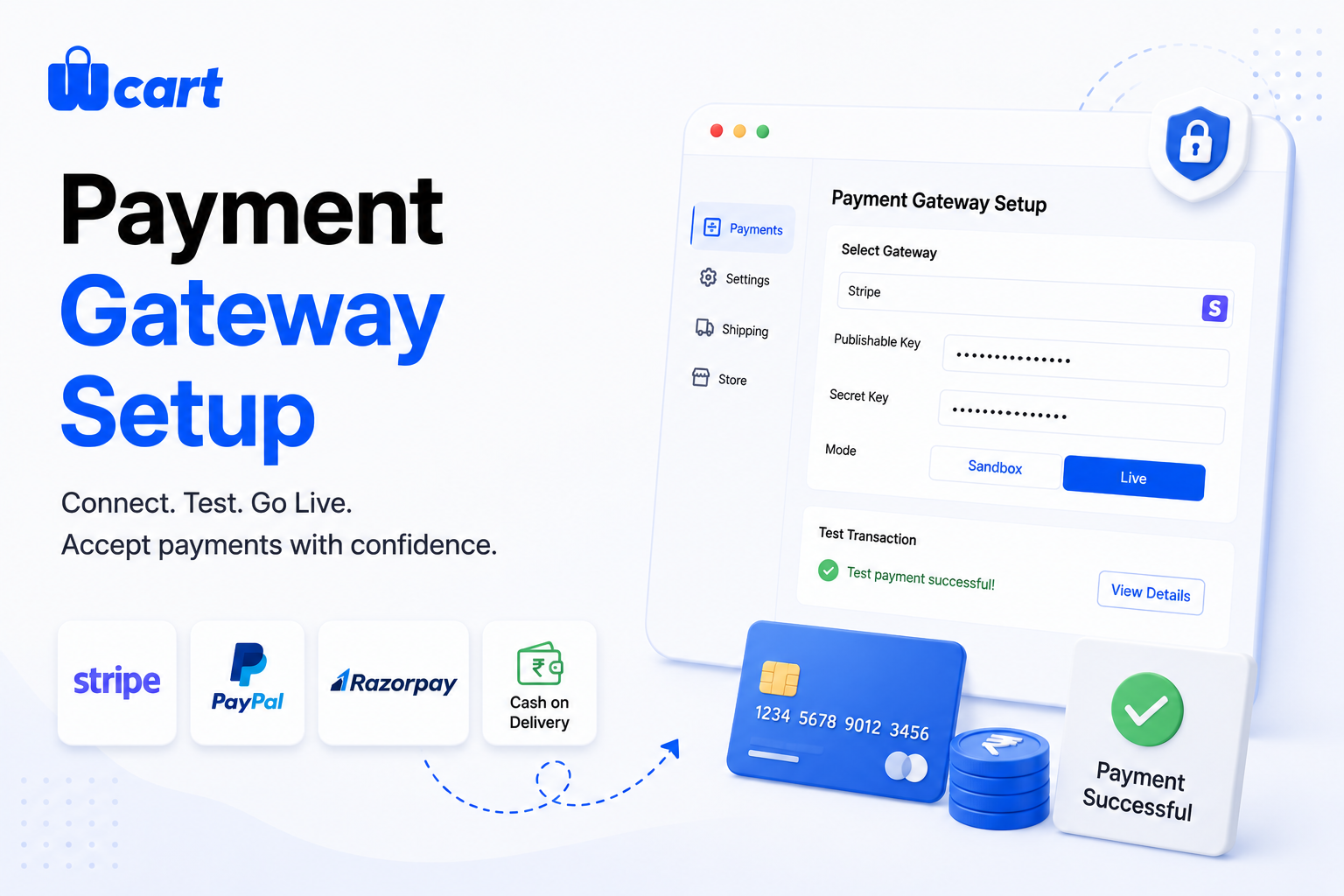
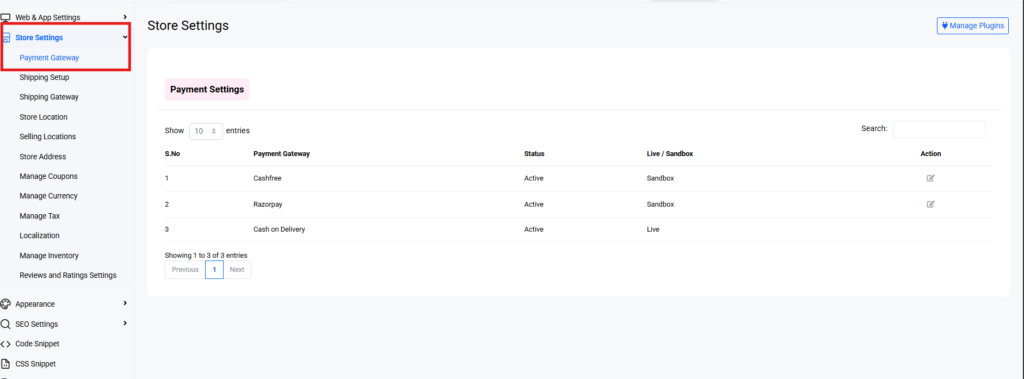
Payment Gateway Setup is one of the most important steps when launching an ecommerce store. In Wcart, the payment gateway setup process is simple and takes only a few minutes . To accept payments in Wcart, open Settings →Store Stting → Payments Gateway, pick a gateway (Stripe, PayPal, Razorpay or a regional processor), paste its API keys, run one sandbox test transaction, then switch to live. Add Cash on Delivery with value and region limits where your buyers expect it. The whole setup takes minutes per gateway the part that matters is testing the full loop (charge, webhook, refund) before you go live, so paid orders never hang as “pending.”
Before you start: what you need
Each gateway needs an account with that provider and a pair of API keys a test (sandbox) key and a live key. Have these ready from the provider’s dashboard before you begin, plus your store’s currency and the countries you sell to. If you sell across borders, also decide which gateway handles which market (see multi-gateway routing in the Payments guide).
Wcart Payment Gateway Setup
How to set up Stripe
- In your Stripe dashboard, copy the Publishable key and Secret key (toggle “View test data” to grab the sandbox pair first).
- In Wcart, go to Settings → Payments → Stripe and paste both keys.
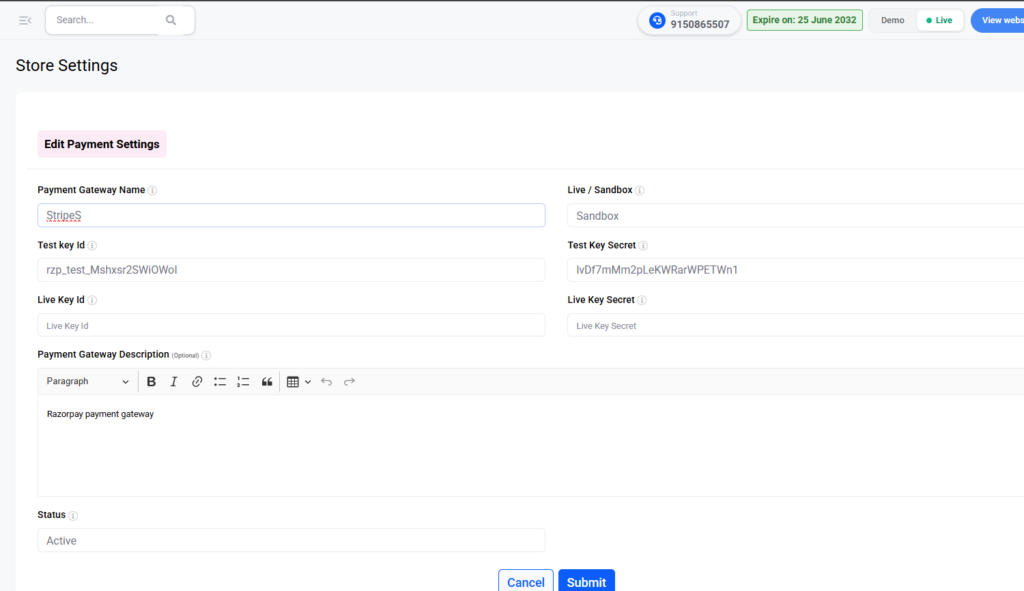
- Set the display name shoppers see at checkout (e.g. “Credit / Debit Card”).
- Add your Stripe webhook endpoint so Wcart is notified when a charge succeeds this is what flips an order from pending to paid. Test that the webhook fires.
- Place a sandbox order with Stripe’s test card
4242 4242 4242 4242, confirm the order completes, then issue a test refund. - Switch to live keys and place one small real transaction as a final check.
Stripe also unlocks Apple Pay and Google Pay on supported devices, which lift mobile conversion enable them once the base gateway is live.
How to set up PayPal
- Create REST API credentials in the PayPal Developer dashboard (Client ID + Secret), in sandbox first.
- In Wcart, open Settings → Payments → PayPal and paste the Client ID and Secret.
- Choose whether to offer PayPal balance, cards via PayPal, and Pay Later where eligible.
- Run a sandbox checkout end-to-end, confirm the return-to-store redirect lands cleanly on your order-confirmation page, then go live.
PayPal’s redirect flow is where drop-off hides always confirm the buyer is returned to a proper confirmation page, not a blank or error screen.
How to set up Razorpay (and regional gateways)
- From the Razorpay dashboard, generate your Key ID and Key Secret (test mode first).
- In Wcart, enter them under Settings → Payments → Razorpay.
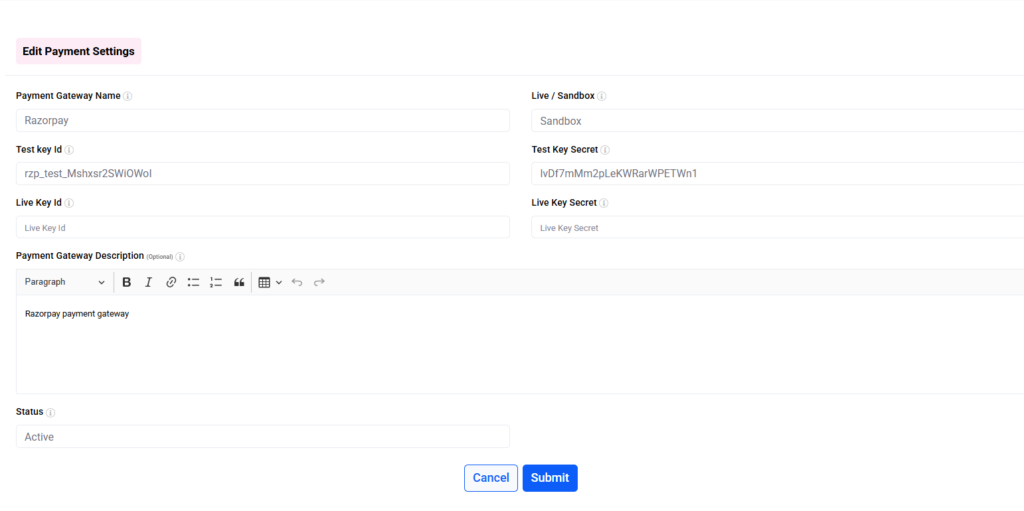
- Enable the methods your buyers use UPI, netbanking, cards, wallets. In India, UPI typically has the highest approval rates, so make sure it’s on.
- Test a sandbox UPI and card payment, confirm the webhook updates the order, then switch live.
The same pattern applies to other regional processors: account → keys → sandbox test → live. Using a local acquirer for a market almost always beats routing those cards through a foreign gateway, because approval rates are higher and fees are lower.
How to set up Cash on Delivery (COD)
In markets like India, the Middle East and parts of Southeast Asia, COD is expected — skipping it loses real orders. But uncontrolled COD invites fraud and returns, so configure guardrails:
- Open Settings → Payments → Cash on Delivery and enable it.
- Set a maximum order value for COD to cap exposure on high-ticket orders.
- Restrict COD to serviceable regions / pincodes only.
- Optionally require a partial advance so the buyer has skin in the game, which cuts return-to-origin losses.
Test mode vs live: the one step nobody should skip
Every gateway has a sandbox. Use it. Before flipping any gateway live, run the full loop at least once: place an order, confirm the webhook marks it paid, then refund it. The single most common launch failure is a missing or misconfigured webhook — payments succeed at the provider but never report back to Wcart, leaving orders stuck as “pending” and customers (and you) confused. Catch it in sandbox, not in production.
Troubleshooting common issues
- Orders stuck “pending” after payment → the webhook isn’t reaching Wcart. Re-check the endpoint URL and that the provider shows successful webhook deliveries.
- Card declines on international orders → wrong currency or no local method. Add multi-currency and a local gateway for that market.
- “Invalid API key” → you’ve mixed test and live keys. Match the mode on both sides.
- Refund fails → confirm the original charge settled and that your gateway account has refund permissions enabled.
After go-live: keep it healthy
Once payments are flowing, do two things regularly: reconcile gateway payouts against Wcart orders so nothing slips between “paid” and “settled,” and review declined-payment reasons — declines cluster around fixable causes (currency, 3-D Secure, missing local method). For high-value carts, enable 3-D Secure to shift chargeback liability. And pair a clean payment setup with abandoned-cart recovery so the buyers who reach checkout but hesitate still convert.
Frequently asked questions
How do I add a payment gateway in Wcart?
Go to Settings → Payments, choose the gateway, paste its API keys, run a sandbox test transaction, then switch to live mode.
Can I offer cash on delivery in Wcart?
Yes. Enable COD under Settings → Payments and set guardrails — maximum order value, serviceable regions/pincodes, and an optional partial advance.
Why is my order stuck on “pending” after a successful payment?
Almost always a webhook problem — the gateway charged the customer but didn’t notify Wcart. Re-check the webhook endpoint and confirm successful deliveries in the provider dashboard.
Can I run Stripe and Razorpay at the same time?
Yes. Running multiple gateways lets you route each transaction for the highest approval rate and lowest fee, and provides failover if one provider has an outage.
Related guides
- Payments on Wcart: The Complete Guide
- Abandoned Cart Recovery in Wcart
- Ecommerce Payment System: How to Choose thehttps://blog.wcart.io/ecommerce-payment-gateways/ Right One
Ready to take your first payment? Start your free Wcart trial, connect a gateway in minutes, and run a test transaction today.

























Leave a Reply